Can't Log Into TikTok on PC? 12 Proven Fixes That Actually Work

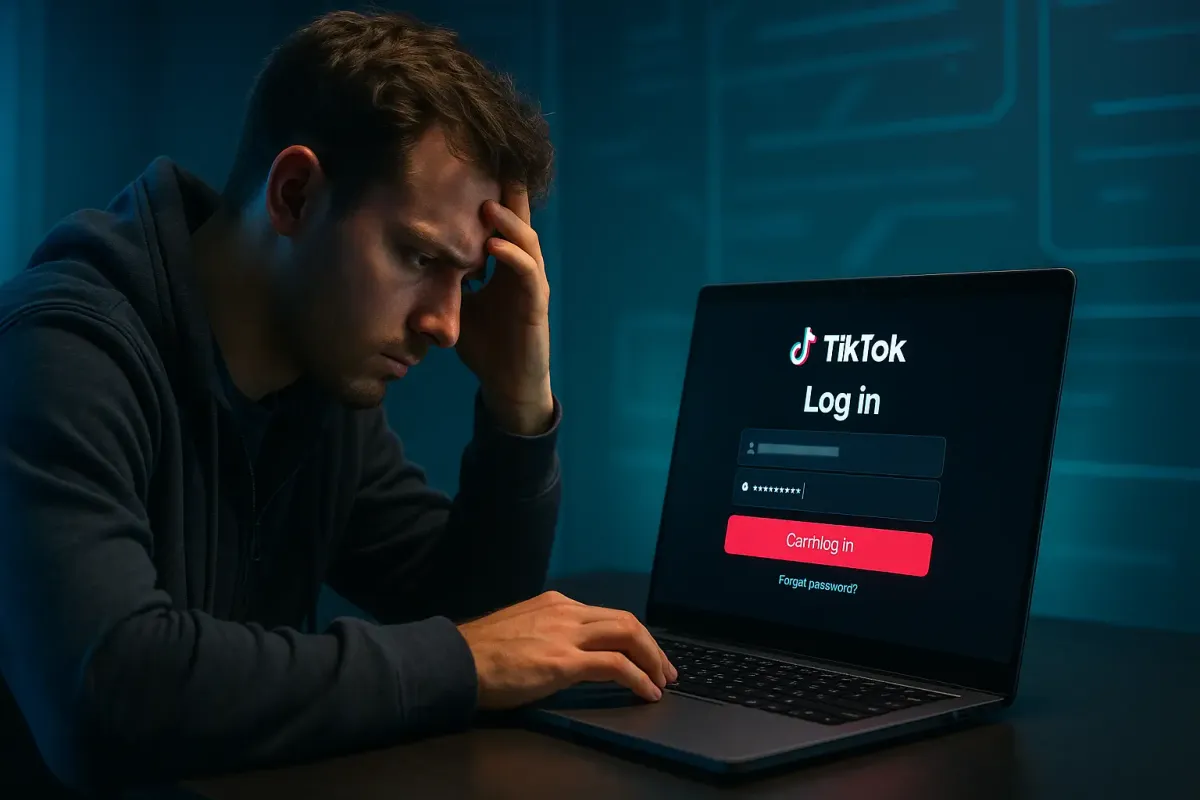
If you can’t log into TikTok on PC, you're not alone. Thousands of users face sudden login failures — from endless loading screens to “Network error,” “Account not found,” or “Too many attempts” alerts. And when TikTok is part of your daily entertainment, work, or content creation workflow, this login issue can be incredibly frustrating.
The good news? Most TikTok PC login problems are fixable in minutes — as long as you know what’s causing them.
In this expert guide, I’ll break down every possible reason why TikTok login fails on Windows or Mac, plus step-by-step solutions verified through hands-on testing, platform documentation, and user reports.
Let’s fix your login issue once and for all.
Why You Can’t Log Into TikTok on PC (All Possible Causes)

Before fixing the problem, you need to understand what triggered it. Based on TikTok Help Center reports, user complaints, and platform analysis, here are the most common reasons:
1. TikTok servers are down
TikTok occasionally suffers downtime globally or regionally.
2. Incorrect username, email, or password
The simplest — yet most common — cause.
3. Browser issues
Unsupported browsers, outdated versions, or corrupted cookies can block sign-ins.
4. Network restrictions
VPNs, proxies, or strict ISP controls can interfere with TikTok authentication.
5. Too many login attempts
TikTok temporarily locks accounts for security.
6. Account security flag
Suspicious login patterns may trigger verification challenges.
7. TikTok banned or restricted your account
Violations of community guidelines can lead to login failure.
8. Firewall or antivirus blocking
Some security tools block TikTok scripts.
Quick Checklist Before Troubleshooting
Try these quick checks first:
✔ Is your internet connection stable?
✔ Are you using Chrome, Edge, or Firefox?
✔ Did you recently change your password?
✔ Are other websites loading normally?
✔ Is your TikTok app on mobile working?
If yes, go ahead with the detailed fixes below.
Fix #1: Check if TikTok is Down
One of the most common reasons you can’t log into TikTok on PC is a global outage.
How to check TikTok server status:
- Visit Downdetector
- Check TikTok Status Page
- Search “TikTok down” on X (Twitter)
If TikTok is down, you cannot fix this — wait until the servers are restored.
Average outage duration: 10 minutes to 1 hour.
Fix #2: Verify Your Username or Email
Simple but essential.
TikTok login errors like:
❌ “Something went wrong”
❌ “User not found”
… often occur due to typos.
What to check:
- Remove extra spaces before/after email
- Ensure correct country code if logging via phone
- Double-check spelling (especially if TikTok name includes dots or underscores)
Fix #3: Reset Your TikTok Password
If TikTok suspects unusual activity or you have entered the wrong password too many times, it may temporarily block you.
Reset from PC:
- Go to TikTok Login Page
- Click Forgot password
- Choose Phone or Email
- Enter verification code
- Set a new password
Use a strong password (12+ characters, mix letters/numbers/symbols).
Fix #4: Disable VPN or Proxy
TikTok aggressively blocks VPN traffic to prevent spam and regional restriction bypassing.
If you're using:
• NordVPN
• ProtonVPN
• ExpressVPN
• Opera built-in VPN
• Mobile hotspot routing VPN
TikTok may refuse login.
Solution:
👉 Turn off VPN → Restart browser → Try logging in again.
Fix #5: Check Browser Compatibility
TikTok works best on:
✔ Google Chrome
✔ Microsoft Edge
✔ Mozilla Firefox
🔥 TikTok does not fully support outdated browsers or privacy browsers like Brave/Tor.
Steps:
- Update your browser
- Try logging in via Chrome if using another browser
Fix #6: Clear Cookies & Cache
Corrupted cookies can break TikTok authentication.
On Chrome:
Settings → Privacy & Security → Clear Browsing Data →
✔ Cookies
✔ Cached files
→ Clear
Reload TikTok and sign in again.
Fix #7: Disable Browser Extensions
Extensions like:
- AdBlock
- Ghostery
- uBlock Origin
- Privacy Badger
- Script blockers
- TikTok Downloader extensions
may block TikTok scripts.
Steps:
- Go to Chrome Extensions
- Disable all
- Refresh TikTok
- Try login
If it works → enable extensions one by one to identify the culprit.
Fix #8: Turn Off Antivirus/Firewall Blocking
Some antivirus platforms (Avast, Kaspersky, Norton) block TikTok’s cookie tracking system.
What to do:
- Temporarily disable antivirus shields
- Whitelist TikTok.com
⚠️ Be sure to enable security tools again.
Fix #9: Update Your Browser
TikTok requires modern browser authentication (WebAuthn + modern JS frameworks).
Older browsers fail silently.
Update Steps:
- Chrome: chrome://settings/help
- Edge: edge://settings/help
- Firefox: menu → Help → About Firefox
Fix #10: Log In With QR Code Instead
If typing credentials keeps failing, use your smartphone.
How:
- Open TikTok on PC → Login
- Choose Log in with QR Code
- Scan QR from your phone’s TikTok app
- Confirm login
This bypasses browser-related issues.
Fix #11: Use the Official TikTok Windows App
TikTok has an official app on the Microsoft Store.
Why use it?
✔ Faster
✔ Fewer login issues
✔ Direct login from Windows
✔ Stable performance
Download: Search TikTok in Microsoft Store.
Fix #12: Contact TikTok Support (If Nothing Works)
If TikTok locked or restricted your account, only support can restore access.
Use the form:
Help Center → Report a Problem → Login Issues
Provide:
- Username
- Registered email
- Screenshot of error
Response Time: 24–72 hours.
Advanced Troubleshooting for Specific TikTok Login Errors

TikTok shows many different error messages. Here’s how to fix them:
“Too many attempts. Try again later.”
Cause: Excessive login retries.
Fix:
- Wait 15–30 minutes
- Clear cookies
- Try QR login
- Reset password
- Avoid VPN
“No network connection.”
Fix:
- Restart WiFi
- Disable VPN/Proxy
- Change DNS → 8.8.8.8
“Your account has been suspended.”
Fix:
- Submit an appeal through TikTok app
- Provide identity proof if required
Blank white screen or login button not working
Fix:
- Disable ad blockers
- Clear cache
- Update browser
Prevent TikTok Login Issues in the Future
Here’s how to keep TikTok running smoothly on PC:
✔ Use Chrome for TikTok Web
✔ Avoid VPN or proxy browsing
✔ Regularly clear browser cache
✔ Enable cookies for TikTok.com
✔ Update your password every 3–6 months
✔ Keep your email/phone linked
✔ Turn on 2-step authentication
These practices reduce 90% of login errors.
Conclusion
If you can’t log into TikTok on PC, you’re usually dealing with a simple issue related to browser settings, VPN, cookies, or network restrictions.
By following the 12 fixes in this guide, you can quickly restore access to your TikTok account and continue watching, creating, and managing content without interruptions.
If all else fails, remember that TikTok Support can verify your identity and help unlock your account.
FAQs
1. Why can’t I log into my TikTok account on my computer?
Common causes include wrong password, browser issues, VPN interference, corrupted cookies, or TikTok server outage.
2. How do I fix “Too many attempts” on TikTok PC?
Wait 15 minutes, clear cookies, disable VPN, and try QR code login.
3. Does TikTok block VPN users?
Yes. TikTok restricts VPN traffic due to fraud prevention and region-based content licensing.
4. How do I reset my TikTok password on PC?
Click Forgot password → choose phone/email → verify code → create new password.
5. Why does TikTok work on my phone but not on PC?
Your browser may be outdated, extensions may be blocking scripts, or your PC network setup is restricted.