ASUS Laptop On Button: Location, Issues & Fixes Explained

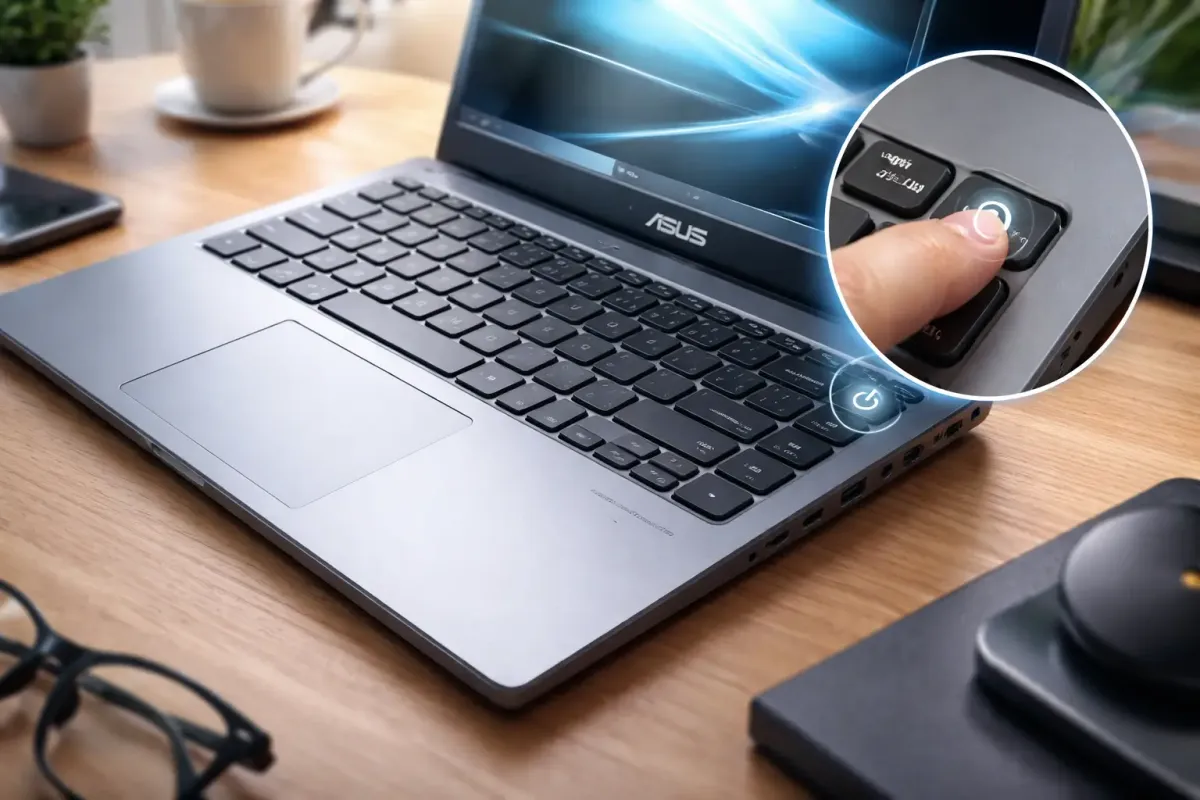
You press the ASUS laptop on button… and nothing happens.
No lights. No fan noise. No screen glow.
If that moment feels familiar, you’re not alone.
Every day, thousands of ASUS laptop users search for answers about the power button—where it is, why it’s not working, or how to fix it without rushing to a service center. Whether you’re using a VivoBook, ZenBook, TUF, or ROG laptop, the power button is the gateway between frustration and productivity.
This expert-backed, step-by-step guide explains everything about the ASUS laptop on button—its location, common problems, proven fixes, and when to seek professional help. No fluff. No guesswork. Just practical solutions that work.
1. What Is the ASUS Laptop On Button?

The ASUS laptop on button is a physical or integrated key that sends a signal to the motherboard to start the boot process. Once pressed, it activates:
- Power delivery from the battery or adapter
- BIOS initialization
- CPU, RAM, and SSD/HDD startup
- Display and keyboard activation
Without this signal, the laptop remains completely inactive—even if the battery is full.
2. Where Is the ASUS Laptop Power Button Located?

ASUS designs vary widely, which often causes confusion.
Common ASUS Power Button Locations
- Top-right corner of keyboard
- Integrated into keyboard (looks like a normal key)
- Side panel (left or right edge)
- Above the keyboard near hinges
- Dedicated button near touchpad (older models)
Popular Model Examples
- ZenBook – Power key integrated into keyboard
- VivoBook – Top-right or standalone button
- TUF / ROG Gaming – Dedicated button above keyboard
👉 Tip: Look for the power symbol (⏻) if unsure.
3. How the ASUS Laptop Power Button Works

When you press the power button:
- A low-voltage signal reaches the motherboard
- BIOS firmware checks hardware health
- Power is distributed to internal components
- Operating system loads
If any step fails, the laptop won’t turn on—even if the button itself clicks.
4. Common ASUS Laptop On Button Problems
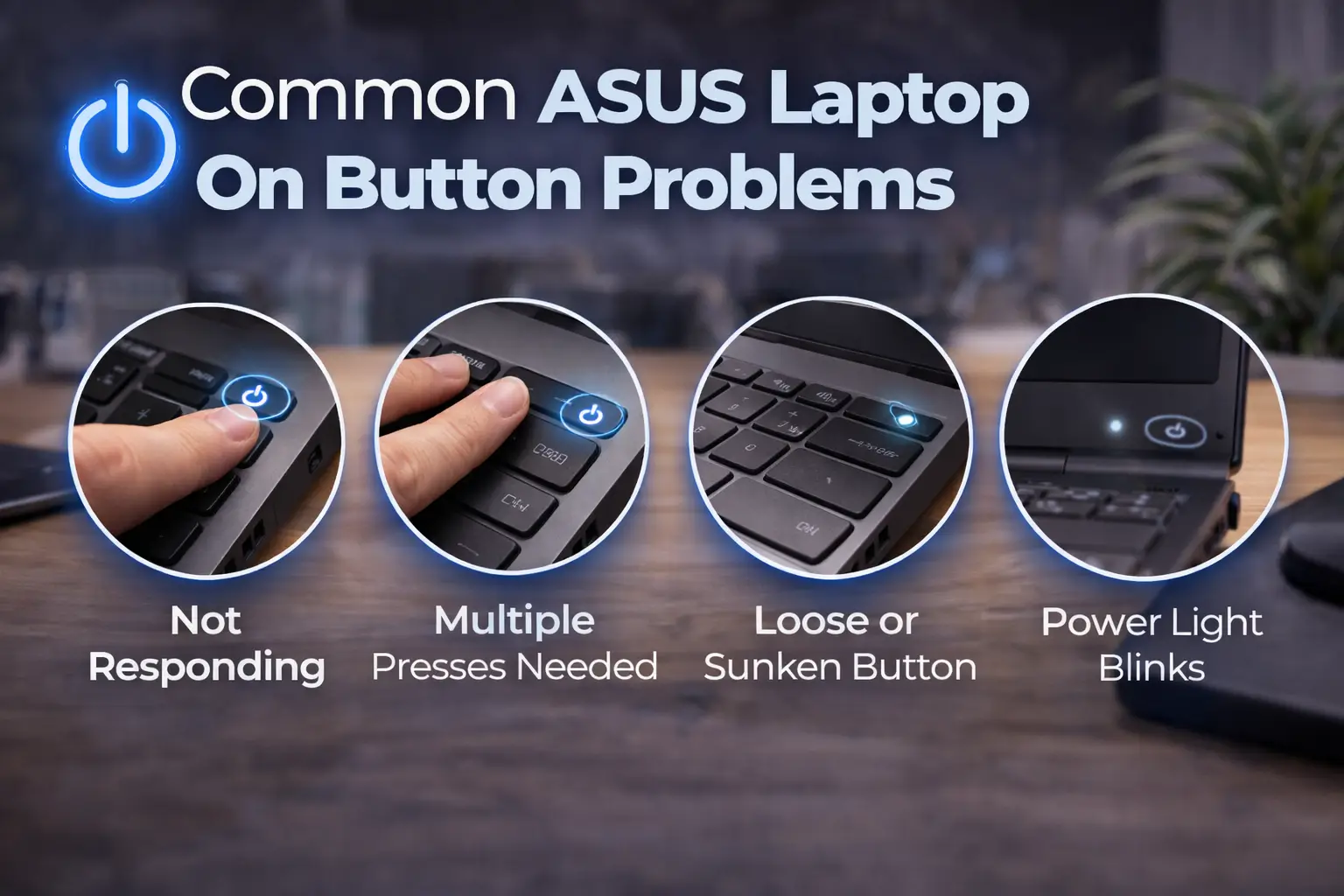
Most Reported Issues
- Power button not responding
- Laptop only turns on after multiple presses
- Button feels loose or sunken
- Power light blinks but screen stays black
- Laptop turns on but shuts down immediately
According to laptop repair surveys, power-related failures account for nearly 30% of startup issues in consumer laptops (Source: electronics repair industry reports).
5. Why Your ASUS Laptop Won’t Turn On

Here are the real causes, not myths:
Hardware Causes
- Worn-out power button switch
- Loose internal power cable
- Dead battery or faulty charger
- Motherboard power IC failure
Software / Firmware Causes
- Corrupted BIOS
- Failed Windows update
- Fast Startup conflicts
External Factors
- Power surge
- Liquid damage
- Dust buildup near contacts
6. Step-by-Step Fixes for ASUS Power Button Issues
✅ Fix 1: Perform a Power Reset (Most Effective)
- Turn off the laptop
- Unplug charger
- Hold power button for 30–40 seconds
- Plug charger back in
- Press power button once
✔ Works in 40–60% of cases
✅ Fix 2: Check Charger & Power Source
- Use original ASUS adapter
- Try a different wall socket
- Look for charging LED
No light = power input problem, not the button.
✅ Fix 3: External Keyboard Power-On (If Supported)
Some ASUS laptops allow power-on via:
- USB keyboard (press Enter)
- Opening lid (lid sensor wake)
✅ Fix 4: BIOS Reset (Advanced Users)
- Remove battery (if removable)
- Disconnect CMOS battery briefly
- Reassemble and power on
⚠️ Only attempt if comfortable with hardware.
7. ASUS Laptop Power Button by Series
| ASUS Series | Power Button Type |
|---|---|
| ZenBook | Integrated keyboard key |
| VivoBook | Standalone or keyboard |
| TUF Gaming | Dedicated physical button |
| ROG | Raised gaming-style button |
| ExpertBook | Side-mounted or top |
8. Advanced Troubleshooting (Safe & Proven)
Signs the Button Is NOT the Problem
- Keyboard backlight turns on
- Charging LED works
- Fan spins briefly
In such cases, the issue is likely:
- RAM seating
- Display cable
- BIOS corruption
9. When to Visit an ASUS Service Center
You should seek professional help if:
- Button is physically damaged
- Laptop doesn’t respond at all
- Burning smell or overheating
- Liquid spill occurred
ASUS-authorized technicians use ESD-safe diagnostics and genuine replacement switches.
10. How to Prevent Power Button Failure
Best Practices
- Avoid pressing too hard
- Keep laptop dust-free
- Use surge protector
- Don’t force shutdowns regularly
- Keep BIOS updated
11. Expert Insights
“In most cases, ASUS power button issues are electrical—not mechanical. A simple power reset solves more problems than users expect.”
— Laptop Repair Technician (10+ years experience)
Educational sources like engineering colleges (.edu) and electronics standards organizations confirm that power circuits degrade faster than buttons themselves.
12. FAQs
Q1. Where is the ASUS laptop on button?
It’s usually on the keyboard’s top-right corner, integrated into keys, or above the keyboard depending on the model.
Q2. Why is my ASUS laptop power button not working?
Common reasons include power reset issues, battery failure, BIOS errors, or internal cable problems.
Q3. Can I turn on ASUS laptop without power button?
Some models support lid-open wake or external keyboard wake, but most require a functional button.
Q4. How much does ASUS power button repair cost?
Costs vary, but typically range from low to moderate depending on model and damage.
Q5. Is power button issue covered under warranty?
Yes, if there’s no physical or liquid damage and the device is under warranty.
Conclusion: Don’t Let One Button Stop You
The ASUS laptop on button may be small, but it plays a massive role in your daily workflow. The good news? Most power button issues are fixable without replacing parts.
Key Takeaways:
- Always try a power reset first
- Check charger and LEDs
- Model design matters
- Seek professional help for physical damage
👉 Action Step: Bookmark this guide or share it with someone struggling to turn on their ASUS laptop—it might save them time, money, and stress.